
Basketball Legends Roblox PS5 Controls Guide
Basketball Legends Roblox PS5 controls let you search the experience, switch between court movement and UI menus via the DualSense touchpad, and access action buttons on screen for pickup or 5v5 matches.
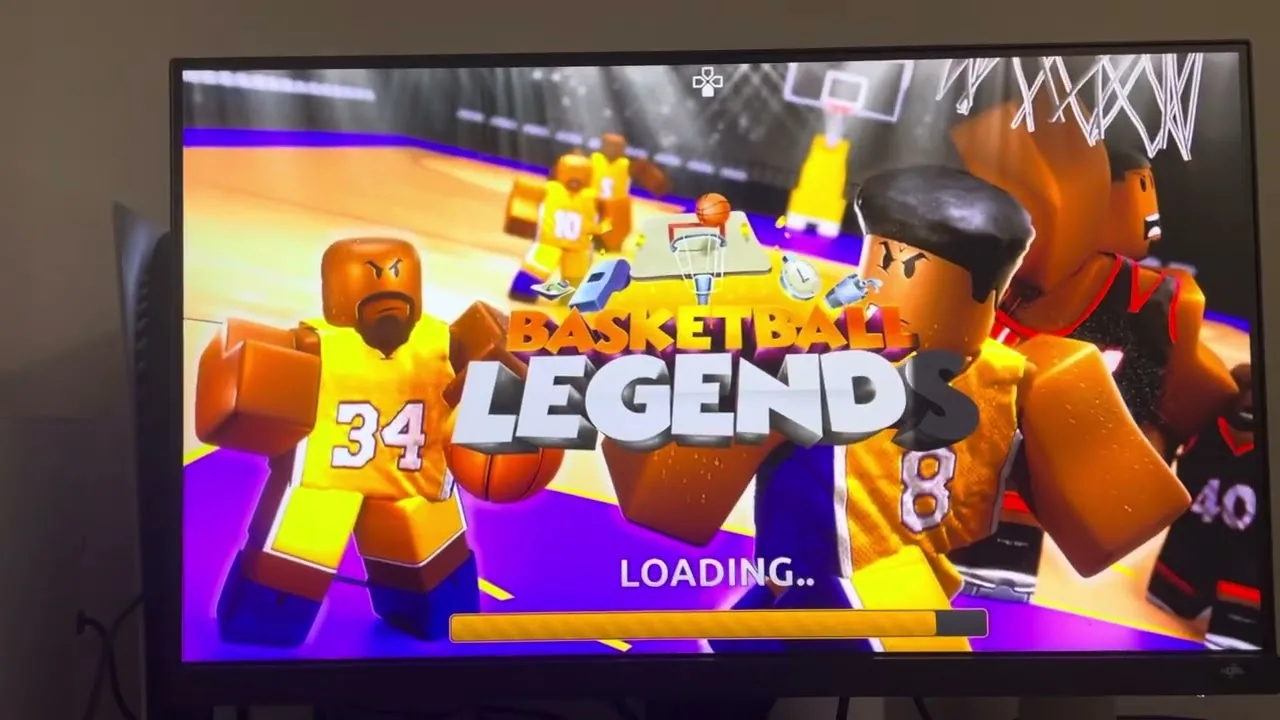
Basketball Legends Roblox PS5 controls let you search the experience, switch between court movement and UI menus via the DualSense touchpad, and access action buttons on screen for pickup or 5v5 matches.
Created by InfinitySports, this sports title hosts 10-player servers where participants jump directly into pickup games or full court matches. Setting up your PlayStation 5 DualSense controller properly ensures you can toggle menu interfaces, navigate match lobbies, and manage on-court action.
Setting Up Basketball Legends on PS5
To find the game on PlayStation 5, head to the main Roblox home screen:
- Move your selection to the search bar located at the top of the interface under experiences.
- Enter the title Basketball Legends.
- Press R2 to submit the search query.
- Select the matching game icon and press X to launch the experience.
Once the experience loads, the game displays on-screen button prompts along the right side of the display for your active moves.
DualSense Controller Navigation and UI Controls
Roblox console ports rely on a dedicated toggle button to swap between character movement and menu selection. In Basketball Legends, the DualSense controller touchpad acts as this primary interface switch.
- Touchpad (Click once): Activates the virtual UI cursor circle. This allows you to claim login rewards, browse the shop, and customize your character.
- Touchpad (Click again): Closes the UI overlay and re-enables full character movement on the court.
- X Button: Selects items, confirms prompts, or closes active menu windows once highlighted.
- Right Side Screen Prompts: Displays your available court actions and button assignments while running on the floor.
Players looking to transition between platforms can compare these inputs with the established PC controls or review identical layout mechanics on PS4 controls.
Gameplay and Input Options
The table below breaks down the available input setups, what scenarios they match, and the specific controller requirements needed on the court.
| Setup Option | Recommended Scenario | Input Requirements |
|---|---|---|
| DualSense Gamepad | Standard couch play on PS5 consoles | DualSense controller using touchpad toggle and on-screen prompts |
| Keyboard and Mouse | Competitive precision and dedicated key binds | Connected USB/Bluetooth keyboard using WASD movement and dedicated keys |
| Cross-Console Gamepad | Transitioning from other console setups | Standard controller layout matching Xbox controls |
Ball Handling and Skill Unlocks
During gameplay, standard offensive actions include shooting, dribbling moves, pump fakes, and dunks. On PC, shooting relies on holding the interact key, while controller players activate the corresponding contextual prompts displayed on their interface. Achieving clean timing on your shot meter unlocks the green light badge.
Advanced offensive techniques can be acquired through progression or instant store passes:
- Post: Unlocks naturally at 50 OVR, or immediately through the 399 Robux game pass.
- Lob: Unlocks naturally at 60 OVR, or immediately through the 449 Robux game pass.
- Eurostep: Unlocks naturally at 70 OVR, or immediately through the 499 Robux game pass.
For defense, players execute steals, guards, rebounds, and blocks to disrupt opposing shooters. Learning these basic controller bindings helps you compete in 5v5 team lobbies and practice scoring on open courts.
Next step
Xbox Controls
Configure controller buttons and execute offensive combos including euro steps, post hooks, and screens in Basketball Legends.