
Basketball Legends Roblox PS4 Controls: PlayStation Setup and Button Layout
Basketball Legends Roblox PS4 controls rely on the DualShock touchpad to switch between menu selection and active court movement, while standard movement sticks and on-screen button prompts control matches across pickup courts and competitive lobbies.
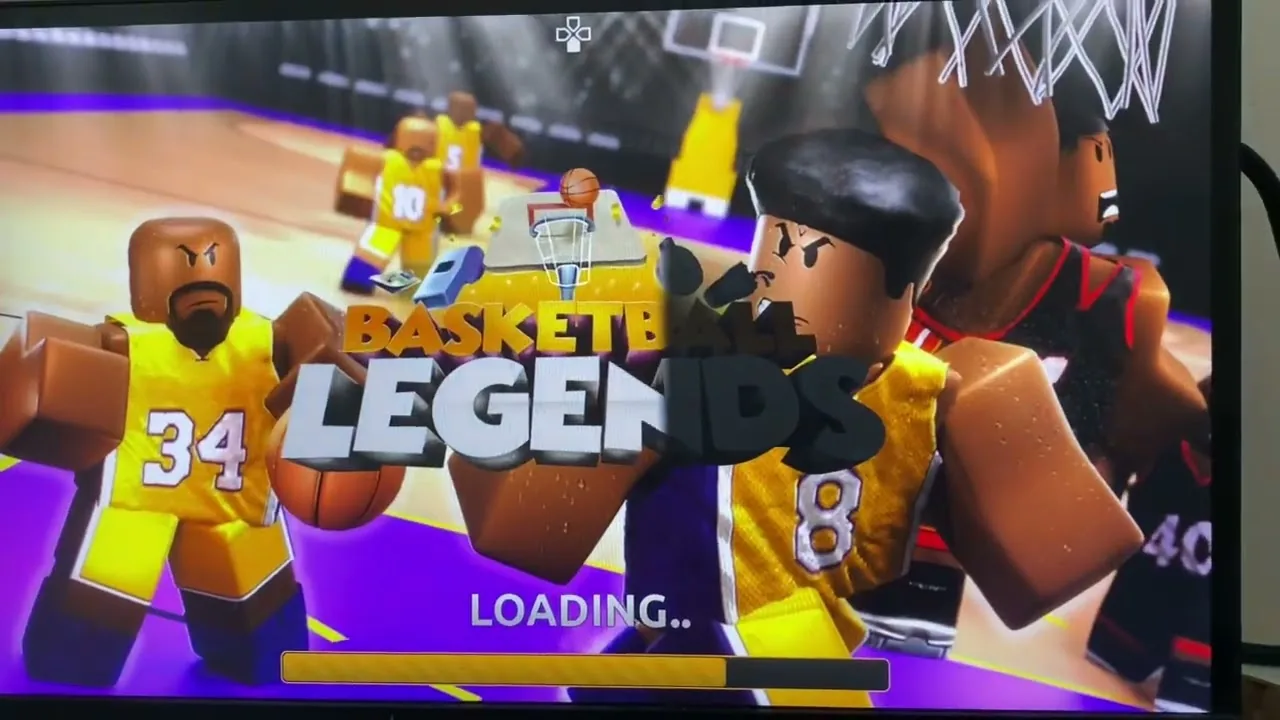
Basketball Legends Roblox PS4 controls rely on the DualShock touchpad to switch between menu selection and active court movement, while standard movement sticks and on-screen button prompts control matches across pickup courts and competitive lobbies.
Finding and Loading the Experience on PlayStation
Accessing Basketball Legends on the PlayStation 4 console requires using the search function built into the Roblox hub application:
- Open the Roblox console application and select the search bar located at the top of the interface.
- Ensure the search filter is set beneath experiences rather than people.
- Type
Basketball Legendsinto the search field. - Press R2 on the DualShock controller to execute the search query.
- Select the primary Basketball Legends experience tile and press X to load the server.
Once loaded, the game places your avatar into the public server hub where you can join pickup games or queue for full matches.
DualShock Controller Touchpad and Menu Selection
Playing on a console controller differs from standard keyboard layouts. The primary mechanism for interacting with game menus on the PS4 edition is the central DualShock touchpad.
Pressing the touchpad activates an on-screen cursor circle. While this cursor mode is active, you can move the pointer to claim daily login rewards, open the customization menu, and browse the cosmetics store on the right side of the screen. Pressing the touchpad a second time hides the pointer, returning control to your analog sticks so your character can run across the courts.
If you switch between console play and a computer setup, reviewing the PC controls shows that desktop players use dedicated keybinds such as E to hold shots, F to guard, and Space to dunk or block. On PlayStation 4 and PS5 controls, these dynamic actions display directly as action prompts on the right-hand side of your display screen during gameplay.
Skill Unlocks and Overall Rating Requirements
Certain basketball mechanics unlock automatically as your player's overall rating increases through match play, though optional gamepasses allow skipping the rating requirements through the in-game shop menu:
| Skill Move | Rating Requirement Skipped | Robux Cost |
|---|---|---|
| Post | Unlocks move before 50 OVR | 399 Robux |
| Lob | Unlocks move before 60 OVR | 449 Robux |
| Eurostep | Unlocks move before 70 OVR | 499 Robux |
Court Practice and Match Types
InfinitySports designed Basketball Legends around fast-paced sessions where 10 players share a server. Players can step into pickup games or join full 5v5 matches.
A dedicated practice court sits directly in front of the PvP training courts. Spending time on this court lets you test shot timing without defensive pressure from opposing players. Timing shots accurately earns the Green Light badge for perfect release, while scoring within the final two seconds of a quarter in the main game awards the Buzzer Beater badge. Additional milestone badges track lifetime statistics, including Ankle Breaker, 3 Pointer, and Scoring Leader at 1,000 points. Joining the InfinitySports developer group also applies a permanent 1.5x coin multiplier to your account.
Next step
PS5 Controls
Find out how to navigate menus and operate PlayStation 5 controller inputs in Basketball Legends on Roblox.